

Creating a New Society Account
(For first-time American Cancer Society online event participants)
If you have never participated in an American Cancer Society event online (Relay For Life, Making Strides Against Breast Cancer, Men Wear Pink, DetermiNation, etc.) you can create a brand new Society Account which you can use for any future ACS online activity!
Visit your event website.
Click on the Sign In link in the upper right-hand corner.

Click the blue Create an Account button.
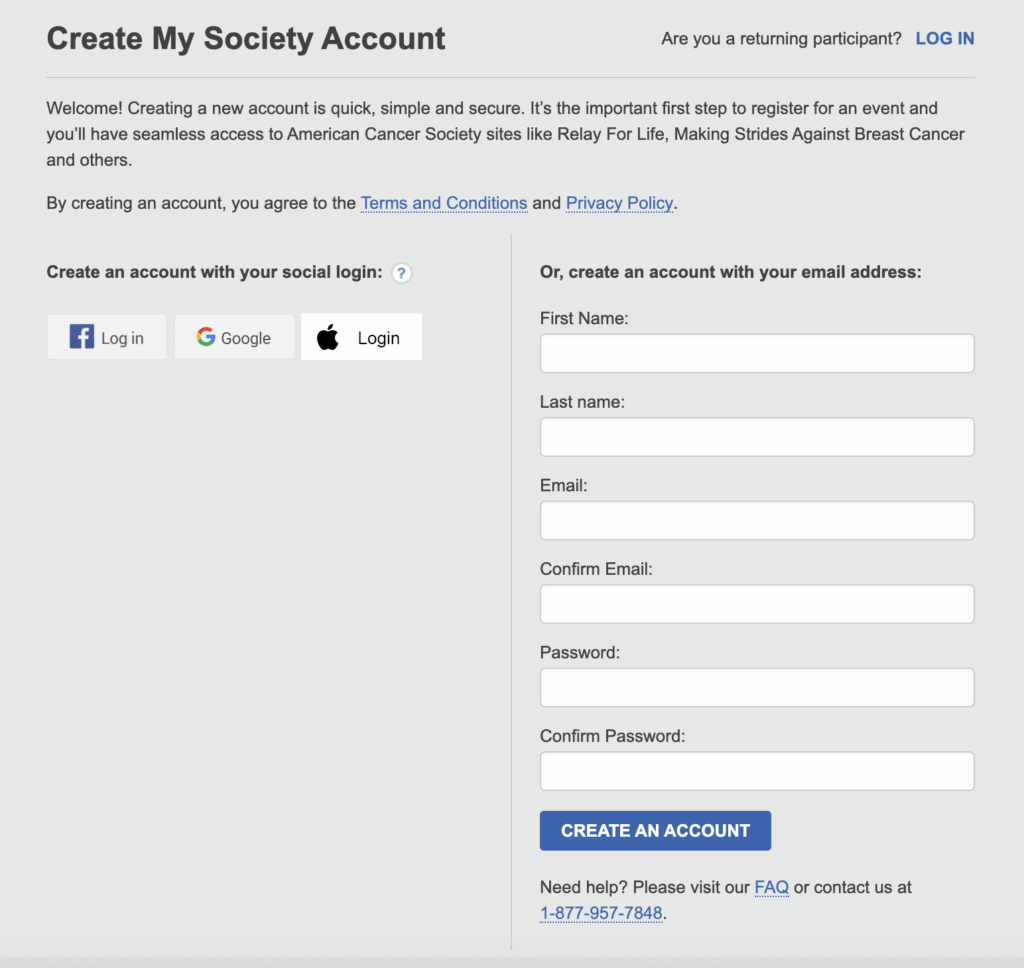
You can choose to create your new account using our social login feature OR using your email address.
Note: If you choose to create an account with your email address, it must be a unique email address, not used by another other ACS online event participant. Enter the required information and click Create an Account.
Logging in to Your Existing Society Account
(For returning American Cancer Society online event participants)
- Visit your event website.
- Click on the Sign In link in the upper right-hand corner.
Use one of the Log In options to access your account.
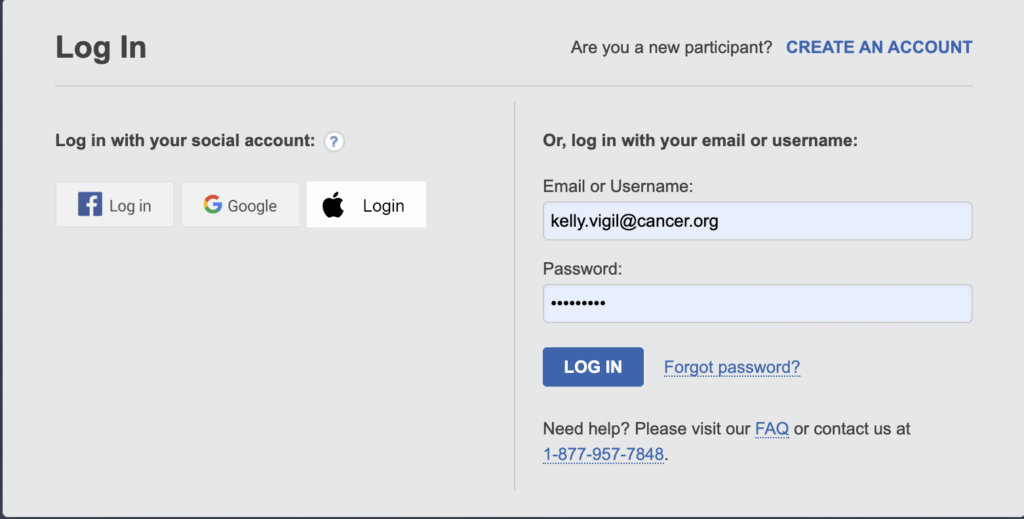
Manage Your Society Account
Log into your Society Account
- Click on the My Account link.

Update Your Basic Information
- Click the blue Edit link to make changes to your biographical and contact information. Click Update to save your changes.

Update Your Login Preferences
- Scroll down to the Login Preferences section.

- Click the appropriate blue links to make changes to your login email and/or password. Make sure you always click Save / Update once you’ve made the desired changes.
Update your Email Preferences
- Scroll down to the My Contact Preferences section.
- Click the blue Edit link to make changes to your contact preferences. Click Update to save your changes.
