Event Mangement Center Guide

Event Manager Experience

This section guides you through the Event Manager Experience, including how to customize your greeting pages, manage participants and teams, create custom content, access reports, and more.

Log In as Event Manager


1. Visit your event website.

2. Sign In:
– Existing Staff/Volunteers: Use the same login information from previous years (same for all events you manage).
– New Staff/Volunteers: Refer to Appendix A for EMC access instructions.

3. Click Sign In in the upper right corner.


Event Manager View


Once logged in, your view of the website will automatically update to show the parts of the site you can edit.


Access the Event Management Center (EMC)


1. Click the “Event Manager” link located at the top right of the page.

2. The EMC dashboard will appear.

3. Related Actions for each section appear on the left side of the screen.


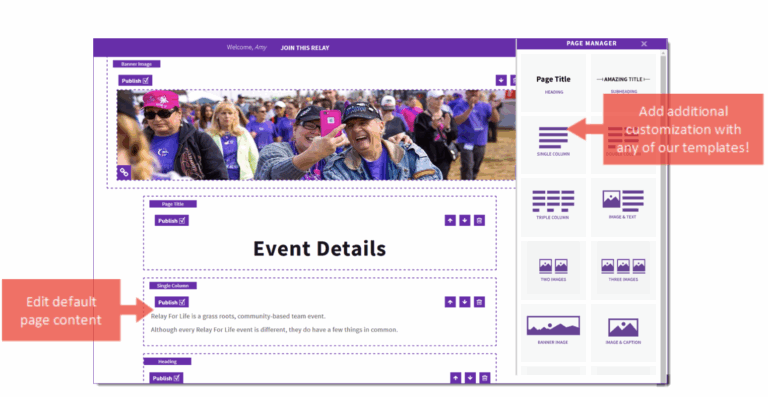
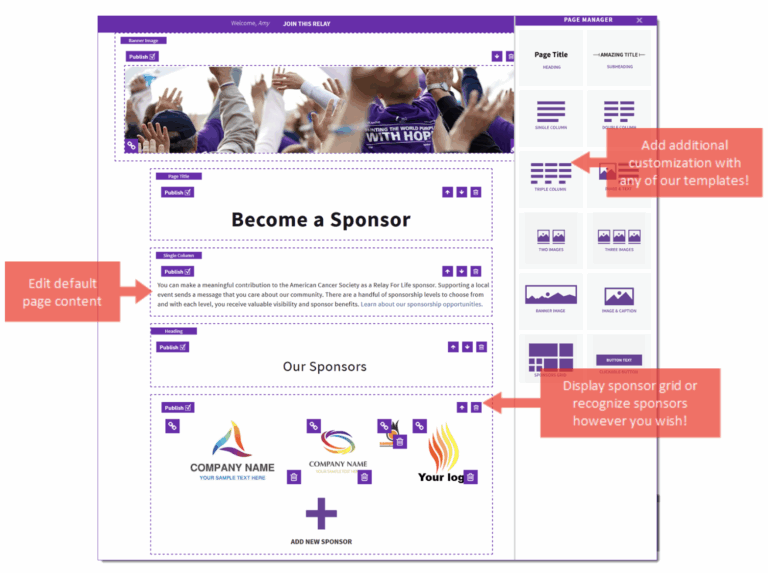
Edit Your Website

To edit any page:
Click the pencil icon to open the page editor.

Edit Event Options (Event Center Tab)

1. In the EMC, click the Event Center tab.
Under Related Actions, select Edit Event Options.


Event Fundraising Goal

  • Enter your event’s fundraising goal.
    (This updates the progress wheel on the event greeting page.)

  • Click Next.


Location Information

  • Review and confirm:
    – Event Location Details
    – Local Office Mailing Address

  • Update if needed.

  • Click Next.


Advanced Options

  • New Team Notification (Optional):
    – Enter your email address if you want to receive alerts when new teams register.
    – Multiple emails may be added—separate each with a comma.

  • Click Next.


eCommerce Options

  • Event Store:
    – Your event is pre-set to a default store.
    – To switch stores, replace the 5-digit store ID with the one you need.

Store options:

  • Relay For Life Store Options: relayforlife.org/LuminariaStores

  • Making Strides store options

  • Active/Community Fundraising store options

If you need a store not listed, submit an Event Website Help Ticket with product names and prices.

  • Click Finish.

To remove your store:

  • Delete the store ID

  • Save your changes

Edit Event Properties


Event Details

  • Event Name: Confirm the event name is correct.

  • Schedule: Confirm the event start time.

  • Date & Time: Confirm the event date.

  • Event Location Details: Verify the location name, city, and state.


Sponsor Lines (1–5)

You can update sponsor lines at any time during the year.

Sponsor Line 1 – SMS Opt-In Widget

  • If your event uses SlickText for text messaging, enter your textword here to enable the opt-in widget.

Sponsor Line 2 – YouTube Channel

  • Leave this field as is. It is tied to the official YouTube channel.

Sponsor Line 3 – Twitter Feed

  • Defaults to the national Twitter page.

  • If your event has its own Twitter feed, enter your event’s full Twitter URL.

Sponsor Line 4 – Facebook Feed

  • Defaults to the national page.

  • Replace with your event’s Facebook page or group URL if desired.

Sponsor Line 5 – Special Features

This field accepts various codes to add features to your greeting page, such as:

  • Adding a live stream link

  • Enabling the Instagram widget (RFL, MSABC, and Active events only)


Click “Finish” when all updates are complete.

Edit Event Coordinator Properties


  1. Name: Verify ACS Staff Person or volunteer name.

  1. Phone: Verify ACS Staff Person or volunteer phone.

  1. Email: Verify ACS Staff person cancer.org email or volunteer email.

  1. Click ‘Finish’ 

If you find any event details are incorrect, you will need to submit the changes so they can be made in all databases. View the Quick Reference Guide ‘How to Make Event Changes’ for the most up to date process.  

Milestone Notification Settings

You can add email addresses to receive notifications when participants reach specific milestone levels.

1. Click “Edit” next to the milestone level you want to manage.

2. Add an email address:

  • Type the email address

  • Click Add

3. Remove an email address (if needed):

  • Select the email from the list

  • Click Remove

4. Click “Finish” when you are done.

C:\Users\adelozie\AppData\Local\Temp\SNAGHTML7db6b3.PNG


  1. Click the pencil icon to open your Greeting Page for editing! 


  1. Save your changes often  

C:\Users\adelozie\AppData\Local\Temp\SNAGHTML7e0ba6.PNG 

  1. Click the X to close out and automatically refresh your page 


C:\Users\adelozie\AppData\Local\Temp\SNAGHTML815294.PNG

Some event websites may have a content block section for additional event information.  


Callout: Right Arrow 299, Textbox 

Please refer to the Event Photos guide for more information and screenshots. 

 
  • Once you’re signed in and have the pencil icon showing to edit the event page, hide the current Event Photos section 

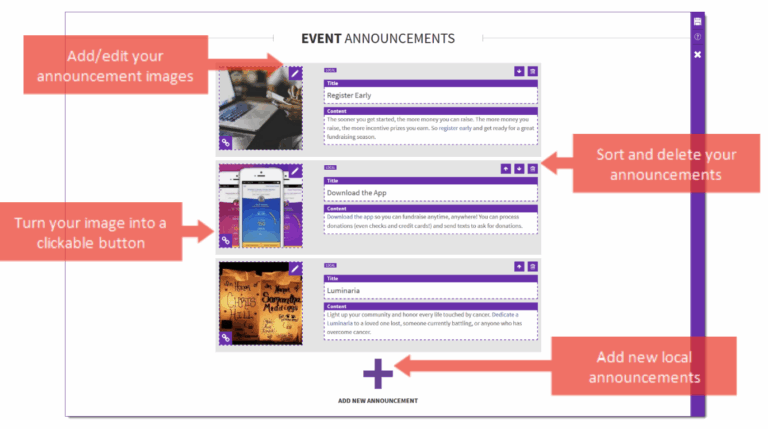
  • Event Announcements 

    • Add a promo through an Event Announcement and include a link to the album.

  • Add a New Section 

    • Click on the “+Add New Section” to select a template and promote the link to the photo album in a number of ways. 

  • Embed photo album  

    • 1. Select Single Column  

    • 2. Click the icon to open HTML editing  

    • 3. Paste the embed code from wherever photo album is hosted. The first photo from the album will show and will open the album when clicked.  

    • 4. Add text or button templates to include a link as well to view the full album. 

  • Image and Caption 

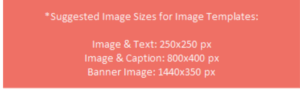
    • 1. Add a 800 x 400 px image. There are several options in Canva to create a promotional image and include photos from the event.  

    • 2. Link image with the photo album URL to open if users click the photo  

    • 3. Add text with a link to appear underneath 

  • Button 

    • 1. Enter text to appear on button  

    • 2. Add link to photo album 


Use the Event Photos guide for more information and screenshots. 

Create and Edit Coaching Emails

Access Coaching Emails

  1. From the EMC, click Event Emails.

  2. Under Related Actions, select Edit Coaching Emails.

  3. On the left side, click Create a New Message.

  4. A Process Navigator will appear to guide you through the 7 steps.


Step 1 – Message Information

Provide internal details (recipients will NOT see this).

  • Message Name: Required. Use a name that uniquely identifies the message.

  • Description: Optional. Briefly describe the purpose of the email.

  • Message Type: Optional. Select a type if you want to group similar messages.

  • Duplicate Suppression: Always leave this set to Yes.

Click Next.


Step 2 – Envelope

Set the basic email details.

  • Sender Name: Who the email appears to be from.

  • Sender Email Address: Must be a real address recipients can reply to.

  • Subject Line: Short and clear.

Click Next.


Step 3 – Stationery

  • Stationery is pre-selected.
    Click Next.


Step 4 – HTML Content

  • Use the WYSIWYG editor to write and format your message.

  • Click Preview to check layout, links, and typos.

  • Save your work.

Click Next.


Step 5 – Plain Text Content

  • Click Convert to Plain Text to create the plain text version.

  • Review for spacing issues or link placement.

    • Links move to the end of paragraphs in plain text.

    • Add cues like “See the link below…” if needed.

  • Click Preview to double-check.

Click Next.


Step 6 – Send Review Email

  • Send a test email to yourself or another reviewer.


Step 7 – Approve

  • Click Approve to mark the message as ready to send.

Click Finish.

After approval, you’ll return to the Message List.


Message List Options

  • Copy: Duplicate an existing email to reuse the layout.

  • Delete or Archive: Clean up your email list.

  • Preview: View the email in both HTML and plain text.

  • Return to Draft: Reopen an approved message for editing.

  • Begin Delivery: Start sending the message to the correct recipients.

Copy a National Email Template to Customize

National email templates are available in your Coaching Email Center. You may send them as-is or customize them.
Important: You must copy and approve a template before sending it.


Access the Coaching Email Center

  1. From the EMC, click Event Emails.

  2. Under Related Actions, select Edit Coaching Emails.

  3. A full list of available email messages will appear.


Copy a Template

  1. Find the email you want to use.

  2. Click Copy next to the message name.

  3. Confirm your selection and click Copy Message (green button).

  4. A new, editable version of the message will now appear in the list.


Customize Your Copied Message

1. Edit the Message

  • Find your copied message in the list.

  • Click Edit next to the message name.

  • The 7-step Process Navigator will appear on the left.


Step 1 – Message Information

  • Do not edit this section.
    Templates use a required naming convention for reporting.

  • Click Next.


Step 2 – Envelope

Enter or confirm:

  • Sender’s Name – who the email is “from”

  • Sender’s Email Address – must be a real, monitored inbox

  • Subject Line – templates include suggested subjects; you may leave or edit
    Click Next.


Step 3 – Stationery

  • Choose a stationery design/theme.

  • Click Next.


Step 4 – HTML Content

  • Use the WYSIWYG editor to customize your message.

  • Click Save often.

  • Click Preview to check layout, links, and typos.

  • After saving and previewing, click Next.


Step 5 – Plain Text Content

  • Click Convert to Plain Text.
    (HTML/styles will be removed; link code will remain.)

  • Review and adjust for spacing or link placement.

    • Links may move to the end of paragraphs.

    • Add guidance like “See the link below…” if needed.

  • Click Preview, then Next.


Step 6 – Send Review Email

  • Send a test email to yourself or another reviewer.


Step 7 – Approve

  • Click Approve to mark the message as ready to send.

Click Finish.


Message List Options

  • Copy: Duplicate the email to reuse its layout.

  • Delete or Archive: Manage and clean up your email list.

  • Preview: View both HTML and plain text versions.

  • Return to Draft: Reopen an approved message for editing.

  • Begin Delivery: Start sending the message to your recipients.


Add a Document Link to an Event Email

You can insert local photos and documents into your event emails.

Note: The document must be uploaded to the Event Library before it can be linked in an email.


Steps to Insert a Document Link

  1. In the EMC, click Event Emails.

  2. Under Related Actions, choose Edit Coaching Emails.

  3. Open or create the email you want to edit.

  4. Go to Step 4 – HTML Content.


Add the Link

  1. Type the text you want to turn into a link (e.g., View the flyer here).

  2. Highlight that text.

  3. Click the Insert/Edit Link button in the WYSIWYG toolbar.

  4. At the bottom of the link dropdown, select the document you uploaded to the Event Library.

  5. Set Target to Open link in a new window.

  6. Click Insert.


Once you save the email, the highlighted text will become an active link to the document.


Insert an Image into an Email
Note: Images must be uploaded to the Event Library before you can insert them.
Steps to Add an Image
  1. In the EMC, click Event Emails.
  2. Under Related Actions, select Edit Coaching Emails.
  3. Open or create the email you want to edit.
  4. Go to Step 4 – HTML Content.

Insert the Image
  1. Place your cursor where you want the image in the email.
  2. Click the Insert/Edit Image button in the WYSIWYG toolbar.
  3. From the Image List dropdown, select the image you uploaded to the Event Library.
  4. Click Insert.

Adjust the Image
  • Resize by dragging the corners of the image while still in the editor.
  • Use the WYSIWYG toolbar to align the image: center, left, or right.
Once you save the email, the image will appear in the email content.
Send Your Local Message

After creating, customizing, and approving your local email, follow these steps to deliver it to the appropriate recipients.


Steps to Send

  1. In the EMC, click Event Emails.

  2. Under Related Actions, select Edit Coaching Emails.

  3. Locate the customized and approved message you want to send.

  4. Click Begin Delivery next to the email.

  5. Select the audience to receive this email.


Once completed, your message will be sent to the chosen recipients.

Send an Engagement Email to Current Event Participants

An Engagement Email is used to communicate with your currently registered participants.


Steps to Send an Engagement Email

1. Locate the Message

  1. Find the customized and approved email you wish to send.

  2. Click Begin Delivery next to the email.

  3. Select the audience: Current Event Participants only.

Important:

  • Do not select Current or Previous Event Donors.
    ACS cannot contact donors recruited by participants; participants maintain those donor relationships.


2. Select Participation Types

  1. Highlight the group(s) you want to email.

  2. Click Add or Add All to include them.

  3. To select multiple groups, hold CTRL while selecting.

  4. Click Next.


3. Apply Optional Filters

Registration Filters

  • No action required by default.

  • Optional filters:

    • Previous Event Participation: Filter by participants who attended previous events.

    • Online/Offline Registration: Include both types of registrants.

    • Date Range: Filter participants based on registration date.

Click Next.

Team Filters

  • No action required by default.

  • Optional filters:

    • Team Membership Filter: Filter by team captains, team members, or individual walkers.

    • Company Affiliation Filter: Filter participants by corporate affiliation.

Tip: To email only Team Captains (e.g., meeting notices), select only the Team Captain box.

Click Next.


4. Review Delivery Details

  • Confirm the target groups are correct.

  • Unsubscribes/Opt-Outs are automatically excluded.

Delivery Options:

  • Send Immediately: Sends the email to recipients right away.

  • Schedule for Later:

    1. Click Schedule under Related Actions.

    2. Select the desired date and time (Central Standard Time).

    3. Click Finish.

    4. Return to the email delivery page and click Send at Scheduled Time to queue the message.

Send a Recruitment Email to Prior Event Participants

A Recruitment Email is used to invite past participants back to your event for the current season.


Steps to Send a Recruitment Email

1. Locate the Message

  1. From the Message List tab, find the customized and approved email you wish to send.

  2. Click Begin Delivery next to the message.

  3. Select the audience: Previous Event Participants only.

Important:

  • Do not select Current or Previous Event Donors.
    ACS cannot contact donors recruited by participants; participants maintain those donor relationships.


2. Select Previous Event Participation Types

  1. Highlight the participation types you want to email.

  2. Click Add or Add All to include them.

  3. To select multiple groups, hold CTRL while selecting.

  4. Click Next.


3. Set Up Do Not Email Groups

  • To avoid emailing current participants, set them as a Do Not Email group:

  1. From the message review page, click Manage Do Not Email Groups under Related Actions.

  2. Select Current Event Participants.

  3. Click Next.

  4. Click Exclude All >> to prevent emails from going to already registered participants.

  5. Click Finish.


4. Review Delivery Details

  • Confirm the target groups are correct.

  • Unsubscribes/Opt-Outs are automatically excluded.

  • Ensure all current participants are included in the Do Not Mail list.


5. Send or Schedule the Email

  • Send Immediately: Sends the email to recipients right away.

  • Schedule for Later:

    1. Under Related Actions, click Schedule.

    2. Select the date and time (Central Standard Time).

    3. Click Finish.

    4. Return to the delivery page and click Send at Scheduled Time.

Manage Your Email Delivery List

From the EMC, you can monitor and manage all your event emails.


Steps to Access the Delivery List

  1. In the EMC, click Event Emails.

  2. Under Related Actions, select Edit Coaching Emails.

  3. Click the Delivery List tab.


What You Can Do on the Delivery List

1. Review Email Status

  • Check whether your messages are Sent or Scheduled.

  • Delivery dates will appear in the Schedule and Completed columns.

2. For Sent Emails

  • Monitor your message’s Open and Click Rates to track engagement.

  • Click Review for detailed delivery information.

3. For Scheduled Emails

  • See the date and time your message is set to be delivered.

  • Click Cancel to stop delivery or change the delivery date/time.


C:\Users\adelozie\AppData\Local\Temp\SNAGHTMLd9cb7d.PNG

Search for Participants
  1. From the EMC, click Customer Service in the top navigation bar.
  2. Under Related Actions, select Manage Participants.
  3. You’ll see a list of all registered participants.
  4. Find the participant by scrolling the list or using the search fields.
    • Enter first name, last name, and/or email.
    • Click Finish to run the search.
    • Tip: Use % as a wildcard (example: Jon% will show Jon, Jonathon, etc.).
  5. Next to the participant’s name, click Manage Participant to open their profile.


  1. How to View and Edit a Participant’s Gift History

    1. From the EMC, click Customer Service.

    2. Under Related Actions, select Manage Participants.

    3. A list of all registered participants will appear. You can scroll to find the participant or use the search function.

    4. Next to the participant’s account, click Manage Participant to open their profile.

    5. On the participant’s account page, scroll to the bottom and find the Gift History section.

    6. In the Gift History list, you can:

      • Change the honor roll name

      • Edit gift soft credit

      • Refund a donation

Update a Participant’s Basic Registration Information
  1. From the EMC, click Customer Service.

  2. Under Related Actions, select Manage Participants.

  3. A list of all registered participants will appear. Find the participant by scrolling or using the search fields.

  4. Next to the participant’s account, click Manage Participant to open their profile.

  5. In the participant record, under Related Actions on the left, click Edit Registration.

  6. Make any needed updates, including:

    • Changing the participation type

    • Updating the fundraising goal

    • Adding emergency contact information

  7. Click Next to edit registration responses, then click Next again.

  8. If the participant paid an offline registration fee, record the payment.

  9. Click Finish to save the updates.

Delete a Participant’s Online Registration

What happens when a participant is deactivated:

  • They are removed from the event’s participant list.
  • They are removed from all pending autoresponders.
  • They no longer appear in public search results (donors, team joiners, visitors).
  • They cannot log into their Dashboard or access their Personal Page.

Before deactivating or deleting a participant:
If the participant is a Team Captain, you must first:

  1. Assign a new team member as captain.
  2. Remove the original captain from all teams.

How to Deactivate and Delete a Registration

  1. From the EMC, click Customer Service.
  2. Under Related Actions, select Manage Participants.
  3. Find the participant by scrolling or using the search fields.
  4. Next to their name, click Manage Participant to open their profile.
  5. On the left-hand Related Actions menu, click Make Inactive.
  6. Confirm by clicking Make Inactive again.
  7. Once inactive, a new option—Delete Registration—will appear in the Related Actions menu.
  8. Click Delete Registration and follow the prompts to complete the deletion.

The participant will no longer be registered once this process is complete.

Make a Participant’s Registration Private

Note: When a participant is made private, they will not appear in search results and no donations can be made to their page.

  1. From the EMC, click Customer Service.

  2. Under Related Actions, select Manage Participants and search for the participant.

  3. Scroll through the list or use the search fields to find the correct participant.

  4. Click Manage Participant to open their profile.

  5. In the Related Actions menu on the left, click Make Private.

  6. Confirm by selecting Make Private again.

  7. The participant’s record will update to reflect the change.

Move a Participant to a Team

  1. From the EMC, click Customer Service.

  2. Under Related Actions, select Manage Participants.

  3. Scroll through the list or use the search fields to find the participant.

  4. Click Manage Participant to open their profile.

  5. In the Related Actions menu on the left, click Change Team.

  6. Select the new team from the list, or use the search bar to find it quickly.

  7. Click Select next to the correct team, then click Finish to confirm the move.

C:\Users\adelozie\AppData\Local\Temp\SNAGHTML14c5d729.PNG 


Create a New Team with a Participant as Team Captain

  1. From the EMC, click Customer Service.

  2. Under Related Actions, select Manage Participants.

  3. Scroll or use the search fields to find the participant.

  4. Click Manage Participant to open their profile.

  5. In the Related Actions menu on the left, click Create New Team.

  6. Enter the Team Name, Team Goal, and select a Company if needed.

  7. Click Finish to save.

The participant will now be the Team Captain of the newly created team.

  1. Promote a Participant

    1. From the EMC, click Customer Service.
    2. Under Related Actions, select Manage Participants.
    3. Scroll or search to find the participant.
    4. Click Manage Participant to open their profile.
    5. Under Related Actions, choose Promote to Captain or Promote to Co-Captain, depending on the role you want them to have.
    6. Click Finish to save.


  2. Demote a Team Captain

    To demote an existing Team Captain to a regular team member:
    1. First, promote another participant to Team Captain.
      • Open the new leader’s record.
      • Click Promote to Captain under Related Actions.
    2. Once the new captain is promoted, the original captain will automatically be demoted to a regular team member.
    Note: This update may take a few moments to appear across the Event Management Center and on your website.


Access a Team Profile

  1. From the EMC, click Customer Service in the top navigation bar.

  2. Under Related Actions, select Manage Teams.

  3. A list of all registered teams will appear. Find the team by scrolling or using the search function.

    • Tip: Use % as a wildcard. Example: Walk% will find Walking, Walkers, etc.

  4. Click Manage next to the team to open its profile.


  1.  


View Team Members

  1. From the EMC, click Customer Service.

  2. Under Related Actions, select Manage Teams.

  3. Scroll or use the search function to find the team.

  4. Click Manage next to the team to open its profile.

  5. On the team’s account page, scroll to the bottom and click the Members tab to see the full list of team members.

View and Edit a Team’s Gift History
  1. From the EMC, click Customer Service.
  2. Under Related Actions, select Manage Teams.
  3. Scroll or use the search function to find the team.
  4. Click Manage next to the team to open its profile.
  5. On the team’s account page, scroll to the bottom and locate the Gift History section.
  6. In the gift list, you can:
    • Change the honor roll name
    • Edit gift soft credit
    • Refund a donation


C:\Users\adelozie\AppData\Local\Temp\SNAGHTML164d3c87.PNG

  1. How to Edit Team Details 

    1. Navigate to Customer Service

      • From the EMC, click Customer Service in the top navigation bar.

    2. Access Manage Teams

      • Under Related Actions, select Manage Teams.

      • A list of all registered teams will appear.

    3. Find the Team

      • Locate the appropriate team using:

        • The list provided, or

        • The search function.

    4. Open Team Profile

      • Click Manage next to the team name to access its profile.

    5. Edit Team Details

      • From the team record, under Related Actions, click Edit Team Details.

      • Make changes as needed:

        • Team Name – Edit the team name.

        • Team Goal – Update the fundraising goal.

        • Team Company – Associate the team with a company.

    6. Save Changes

      • Click Finish to complete the updates.


C:\Users\adelozie\AppData\Local\Temp\SNAGHTML166e2b97.PNG

How to Add a Company Record 


If your event includes company teams, you can create a company record in the Event Management Center (EMC). Once added, anyone registering a team from that company will be able to select the business name from the Company dropdown during registration.

Note: National company supporters are automatically included on the website. You do not need to add those.


Step 1: Navigate to Manage Companies

  • From the EMC, click Customer Service.

  • Under Related Actions, select Manage Companies.

  • A list of all local companies will appear.


Step 2: Add a New Company

  • Under Related Actions, click Add a New Company.

  • Complete the following fields:

Required Fields:

  • Company Name (*required)

  • Notes – Use this field for internal notes (e.g., sponsor details). This will not appear on the website but can help other event managers.

Optional Fields:

  • Skip questions 3–5 (Company Hierarchy Options, Company Priority, Number of Employees).

  • New Company to this TeamRaiser:

    • Leave checked if the company is new.

    • Uncheck if they are returning.

  • Additional Custom Company Detail 1 & 2 – Add extra info for reporting.

  • Internal Staff Contact – Primary contact at the company.

  • Volunteer Manager – Volunteer working with the company.

Participation Status:

  • Check Confirmed only when you have:

    • A sponsor commitment form, and

    • The associated donation in hand.

Click Next.


Step 3: Identify Company Coordinator

  • Enter the coordinator’s contact information.

  • Click Next.


Step 4: Identify Executive Champion (Optional)

  • Enter contact details for a company representative who can assist with general involvement.

  • Click Next.


Step 5: Review & Finish

  • Review all details.

  • Click Finish.

Once completed, the new company will appear in your Local Companies List and will be available for teams to select during registration.

How to Edit a Company Record in the EMC
  1. Navigate to Manage Companies

    • From the EMC, click Customer Service in the top navigation bar.

    • Under Related Actions, select Manage Companies.

  2. Locate the Company

    • A list of all local companies will be displayed.

    • Find the company you want to edit and click Edit Company.

  3. Update Company Information

    • Use the progress bar on the left-hand side of the page to navigate through sections and edit the company details as needed.

From the EMC, click Reports.

On the Reports page, you will see:

  • Name and Description: The name and description of each available report is listed in the first column.

  • Actions: Click Run Report to begin running the report.


  1. From the EMC, click Reports.

  2. A list of all available reports will be displayed. Locate the report you would like data from. Click Run Report under the Action column beside the appropriate report.

  3. Follow the prompts and the Process Navigator on the left-hand side of the page to navigate through the reporting process.
    a. Step 1a – Edit Runtime Parameters: If the report allows for a custom date range, enter the parameters from which you would like to gather data. Most reports do not have editable parameters, so you may not see this step.
    b. Step 1b – Identify Result: Provide a custom report name or description to help you identify the results before clicking Next.
    i. If you manage multiple events, consider adding the Event Name to the Report Label so you can easily identify results from one event to the next.
    c. Step 1c – Report Criteria Summary: Review the report summary page and click Run Report at the bottom to begin the data collection process.

  4. The report will display as soon as the task completes. The following actions will be available:
    a. Download: Click the disc icon to download the report in one of the following formats:
    i. CSV – comma separated values format (recommended).
    ii. PDF – Adobe Acrobat portable document format.
    iii. HTML – hypertext markup language format.
    b. Print: Click the printer icon to print the report results.

Note: Sometimes reports will not appear immediately. If this happens, retrieve your results from the Report Results tab.

  1. From the EMC, click Reports.

  2. To review the results of reports you have previously pulled, switch to the Report Results tab.

  3. The Report Results List page will display the reports that have been generated from your website.

  4. Click the appropriate action from the Actions column to View, Download, Print, or Delete the data.


C:\Users\adelozie\AppData\Local\Temp\SNAGHTML16ed11f2.PNG

  1. From the EMC, click + Switch To Another Event.

  2. Use the search function to find the past event you want to access data for.

  3. Click Manage This Event beside the event you wish to access.

  4. You will be directed to the prior year Event Manager Center, where you can pull reports or access previous participant information.

C:\Users\adelozie\AppData\Local\Temp\SNAGHTML1394a4e.PNG


Note: Your prior year event will only appear in this list if you were an Event Manager from that year. If you are new to the role of Online Chair and did not have access to the Event Manager Center previously, please contact your staff partner for log in permissions. 

From the EMC, click Customer Service.

Under Related Actions, select Search for Gifts.

  1.  


Enter any information you know about the donor and/or donation, including:

  • Donor’s first / last name or email address
  • Participant’s name who the donation is credited to
  • Confirmation code of the donation as listed on the gift receipt
  • Value of the donation
  • When the gift was made online
  • Use % for wildcard. Example: Jon% if you are trying to find Jon or Jonathon

Click Finish to perform the search.

  • From the EMC, click Customer Service.
  • Under Related Actions on the left side of the page, click Manage Teams, Manage Participant, or Record Event Gifts, depending on how the gift should be credited.
  • If you are crediting it to a team or a participant, the next step will be to search for your team or participant name and click Manage in the action column.
  • Under Related Actions on the left side of the page, click Record (Team, Participant or Event) Donation.
  • For Step 1 – Enter Donor Information, enter the donor’s personal information. Only name is required.
  • Click Next.


C:\Users\adelozie\AppData\Local\Temp\SNAGHTMLaacdad.PNG 


C:\Users\adelozie\AppData\Local\Temp\SNAGHTMLad89ac.PNG 


  • For Step 2 – Configure Gift, specify the following:  

Gift Type – defaulted to one time gift 

Gift Amount – enter the monetary amount of the single payment or of each payment to be received for the sponsorship level  

Do Not Display Amount – check this box if the amount is not to be displayed  

Recognition Name – enter the recognition name if it is different than the name on the billing information. Enter “Anonymous” if the donor does not want their name displayed 

Batch ID – enter a value to identify groups of donations processed at the same time  

Payment Method – select the method of payment:  

Cash  

Check – if you select check, an additional field will display to enter the check number  

Payment Status – If you have the donation in hand, select Confirmed  


  • Click Process or Process and Add Another if you have another donation to add to that particular participant, team or event.  
 

Some donors may choose to be referred to by a different name or to remain anonymous. As the event manager, you may update how the donor and donation is displayed on each participant page.

  1. From the EMC, click Customer Service.

  2. Under Related Actions, select Search for Gifts.

  3. Enter any information in the search fields provided, including available information about the donation. Click Finish to perform the search.


4. Find the donation whose appearance in the Honor Roll you wish to update. Beside the gift record, click the View/Edit link.


C:\Users\adelozie\AppData\Local\Temp\SNAGHTMLa3dce2c.PNG 


5. Skip to step 2. Configure Gift

6. Specify and update the necessary information:

    • Do Not Display Amount: Check the box beside “Do not display the gift amount” if the donor does not wish to have his/her donation amount displayed publicly on the personal page.

    • Recognition Name: If this field is left blank, the Recognition Name is defaulted to the donor’s Name, but you can update the donor’s name as s/he wishes it to appear on the Honor Roll. If the donor wishes to remain anonymous, enter “Anonymous” in the field provided.

C:\Users\adelozie\AppData\Local\Temp\SNAGHTML896534a.PNG

7. Click Finish to save changes to the donation’s appearance in the Honor Roll. 

  • From the Event Management Center, click Customer Service in the top Navigation Bar.

  • Under Related Actions, select Search for Gifts.

  • Enter any information in the search fields provided, including available information about the donation. Click Finish to perform the search.

  • Beside the gift you wish to move, click the Change Soft Credit link.


C:\Users\adelozie\AppData\Local\Temp\SNAGHTMLa3ef08b.PNG 


  • Identify who will receive credit for the donation. You can adjust the gift credit to a participant, team, or the general event. Click the appropriate radio button before clicking Search for Recipient. 


  • Identify the recipient of the donation through the list provided or through a search. Click Select next to the person or team to whom you are reassigning credit for the donation. 


  • Confirm Changes: Review the transaction information and the change in soft credit before confirming. If it is correct, click Finish and the credit of a donation will be moved. 
 

If you need to refund and online donation, or change/refund an offline donation, please log a detailed Salesforce ticket or call 1-800-227-2345, option 2.  


Note: Please do not change an offline gift amount as an attempt to correct a gift, as that will lead to discrepancies between website, mobile app and Facebook fundraiser totals.  

Scroll to Top